
It’s no secret that I don’t care much for paper. If I can do something electronically instead of with paper, I usually choose pixels over pulp. When I started developing our Intranet at my full-time job, we had a contest between the employees to determine the name for it. My suggestion was to call it Paper Sucks. It didn’t get very many votes. 😕
At the same time, however, I realize that there are times when paper is just more efficient. For example, I seem to be more productive when I work from a printed next actions list than when I work from one on my monitor or my Palm.
When I absolutely have to have something on paper, I usually prefer it to be digest sized (8-1/2″ X 5-1/2″). (I don’t have a good reason for this, I just prefer that size.)
Many years ago (May 6th-8th, 1999) to be exact, I developed 16 Word templates that would print digest sized booklets for me. Over the years, I”ve used these countless times. I’ve shared them with friends and co-workers, but I’ve never thought about publishing them. I had to use one this past weekend and thought that I might as well share them with the world. With most printer drivers these days offering 2-up printing you may not find them as useful as I did 6 years ago. I still find that they are quite handy to have around.
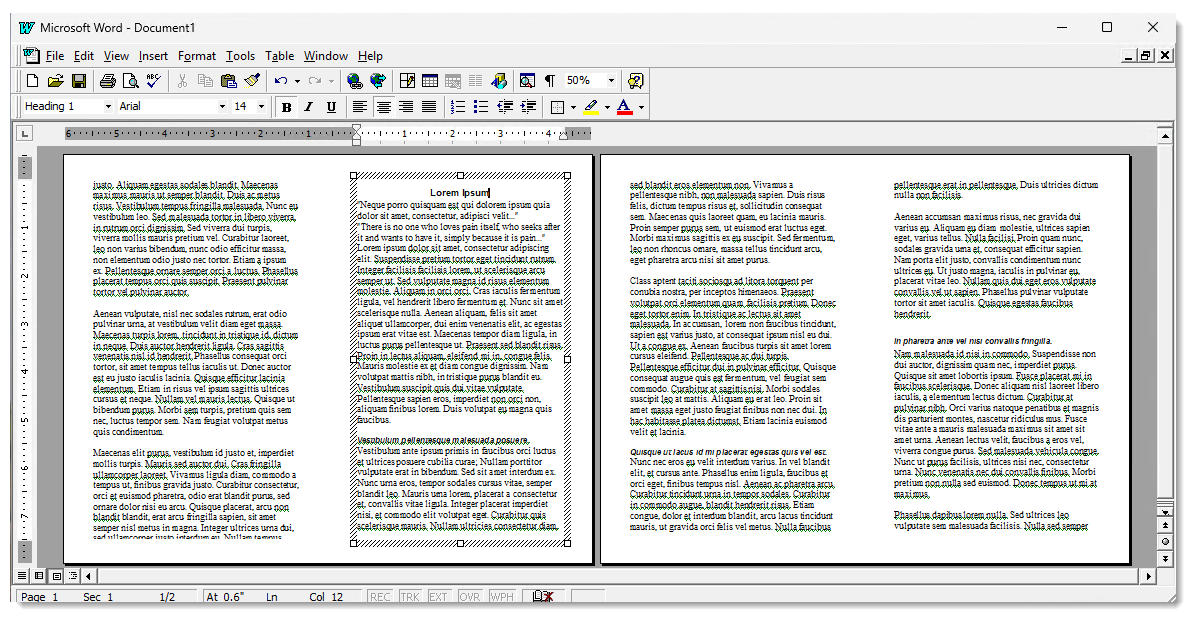
The WordBookletTemplates.zip file contains Microsoft Word templates for 4, 8, 12, 16, 20, 24, 28, and 32 page booklets, with and without page numbers (16 templates in all). I think I developed these with Microsoft Word 97 and I’ve never made any changes to them. They use a series of text boxes that flow from one to the other to get the text where it is supposed to be in the booklet.
To use them, simply start a new document based on the template of choice and start typing (or paste your text) into the text box on the right hand side of the first page. The text will flow to fill all the other pages as needed. To understand this better, you may find it useful to start with one of the templates with page numbers. If you shrink the page size down so that you can view all the pages, it may appear that your text is all over the place. Don’t panic! That’s normal, and there is a reason for it.
Make sure your printer has 8-1/2″ X 11″ paper in it. If your printer does duplexing, simply print your document. If your printer doesn’t offer duplexing, then it will be a simple 3-step process for you: 1) Print out all the odd numbered pages; 2) When they are done, reverse the sort order of the pages [This may vary by printer model and settings]; 3) Print out all the even numbered pages on the back of the odd numbered pages. Once all your pages have printed, simply fold them in half. The pages will be set up so that they will form a properly numbered series of pages from beginning to end.
Once the pages are printed, I use a long reach stapler to bind them together. (I omit this step on the 4-page booklet because it’s only one piece of paper, of course.)
Oh, they seem to work in OpenOffice.org too! Enjoy!
Update (Nov. 3, 2006): So many people have asked me to create custom size templates for them that I have decided to start offering this service. The standard templates that are linked to above will remain free, but for $49 I will create custom size templates for you in all 16 variations: 4-, 8-, 12-, 16-, 20-, 24-, 28-, and 32-page booklets with and without page numbers. I will need to get some information from you about your specific requirements within the available options. Email me at [redadcted] if you are interested in purchasing custom Microsoft Word Booklet Templates.
Update (July 14, 2026): This post originally appeared on my first blog, RickySpears.com. This is a copy of that original post from March 30, 2005. That post received 100s of comments. I have tried to reproduce those as faithfully as possible below, with information from Archive.org (March 16, 2010 capture and March 12, 2019 capture).
ORIGINAL COMMENTS:
June 14th, 2005 at 4:47 pm – Anonymous Says:
Thanks!June 15th, 2005 at 7:35 pm – Anonymous Says:
Very useful – saved me a lot of time – thanks!June 22nd, 2005 at 4:55 pm – Christine Says:
Thank you this was an extreme help….!June 27th, 2005 at 8:34 pm – John M. DeGrazia Says:
Dear Ricky,
These templates were developed for Word 97. Will they work with Word 2000?
Regards, JohnJune 28th, 2005 at 5:48 am – rickyspears Says:
John – They seem to work with all versions of Microsoft Word released after 1997. They even seem to work perfectly with OpenOffice.org!July 2nd, 2005 at 1:13 pm – Laurie B. Says:
How do you add more pages? and thank you this is great!!!July 2nd, 2005 at 4:41 pm – rickyspears Says:
Laurie – Unfortunately, Microsoft Word has a limit of 32 linked text boxes in a single chain. That’s why I only created templates up to 32 pages.July 13th, 2005 at 8:28 pm – lily Says:
many many thanks! the last time I tried to creat a booklet, it took me hours! This time it was a breeze……..July 24th, 2005 at 9:14 pm – Tadoh Says:
Was very helpful, and saved me time, extra software and money.July 30th, 2005 at 10:45 am – Darby Says:
Ricky, how generous of you to offer this up. Thank you. Question: I need to print a 8.5 x 11 booklet (on 11 x 17 sheets). These are all digest size. Do you have 8.5 x 11 booklet or can you point me in the right direction? Thanks! DarbyJuly 30th, 2005 at 11:38 am – rickyspears Says:
Darby – I don’t have booklet templates for 11×17 paper. Since I don’t have need of them myself, I also can’t quite justify the time to develop them. Sorry. You could take on of the templates that I provided that has the number of pages you need, change the paper size to 11×17, and then adjust the sizes and locations of each of the text boxes. When repositioning the text boxes, it will be easier to figure out what size they need to be and where they need to be located and enter those measurements into the properties box for each one instead of trying to just drag them to the right location and size.July 31st, 2005 at 9:15 pm – Richard Says:
Hello,
You have any ideal how to add more pages? I seen the post above that it don’t allow more than 32 linked boxes.
If I continued with a new project – ( fill up the first 32 linked boxes) then start a new 32 template page you have any ideal how I can number them or say I did not need all the 32 in the next set how to do that? Like slip them into the first 32?
Thanks
RichardAugust 1st, 2005 at 6:49 pm – rickyspears Says:
Richard – I guess if I had some text that would span 40 pages, I would I would use a combination of the 32-page template and the 8-page template. Here are the steps I would probably take:
– Paste my text into the 32-page template with page numbers
– Cut all text that flowed past page 16 (the middle point of that template)
– Paste that text into the 8-page template with page numbers
– Cut the remaining text that didn’t fit in the 8-page template
– Paste it into pages 17-32 of the 32-page template
– Edit the page numbers for pages 1-8 in the 8-page template to be 17-24
– Edit the page numbers for pages 17-32 in the 32-page template to be 25-40
– Print the two separate booklets and insert the 8-page printout where it belongs inside the 32-page printout
This seems to make sense. You’ll probably just have to play with it.August 2nd, 2005 at 3:26 pm – Rob Says:
Thank you SO much!
I truly love you! 🙂
Now I can put together the small Fair Book without the aggravation of having to figure out what went where.
I thought I would have PLENTY of room with the 20 page and ended up using the 32!
Again, thanks! Your hard work has certainly made this gal happy!
RobAugust 16th, 2005 at 7:42 am – T Says:
Ricky, I’ve used your 8 1/2×11 template it worked Great. Do you have a word template that I can use to create a Football program on 22 x 17 paper? Thanks Toni 🙂August 29th, 2005 at 7:07 pm – Sean Says:
Ricky
Poached your templates for an upcoming event I need a small booklet for. Many Many thanx.
SeanSeptember 2nd, 2005 at 11:24 am – mark Says:
Ricky – This was an act of generosity. Thanks very much for saving me hours.
MarkNovember 27th, 2005 at 2:09 am – Bill Says:
Thanks Ricky.
You really saved me a lot of panic. I needed a format for a Chrismas booklet, and kept screwing up the page order.
Thanks again!
BillDecember 14th, 2005 at 1:29 am – Tracy Says:
Thanks so much! This is exactly what we needed!December 21st, 2005 at 1:12 pm – PigPog Says:
Templates
Latest Update: Added Ricky Spears’ Microsoft Word Booklet Template – thanks to Ricky for reminding me about it!
When you want to make a quick calendar or list of some sort, you can save a bit of time by starting with a template – like a pre-designedFebruary 5th, 2006 at 10:50 pm – TimK Says:
Ricky, You rock! Thanks for publishing these templates.April 7th, 2006 at 9:12 am – WD Says:
I thought I had found booklet templates for making an A6 book. Appearently it’s only for making A5 books. bummer. Thanks anyway.April 9th, 2006 at 2:56 am – olaf Says:
found your web-site during a search for booklet template, but it’s not for european paper sizes in a4 format.
Initially thought that it would create no problem to simply change the paper size and the text field size. Unfortunately it isn’t so easy as I hoped. Changed the text field on the first page, but the new size of the textframe is not inherited to the other pages !
Is there a simple solution for that ? to adjust the formatting of every textframe in a 20 page boeklet manually isn’t realy fun.
(I use word2000)April 9th, 2006 at 7:55 am – rickyspears Says:
Olaf – It may not be fun, but it sure is cheap! Here is a technique that may help you. Select a zoom level of something like 25% so you can see all the pages in the booklet. Then select the first text box on the left hand side of the firs page, hold down the shift key and select all the other left-hand side text boxes. Release the shift key and right click on the border of one of the selected text boxes and choose “Format Text Box”. Make your changes on the “Size” pane. Any changes should be reflected in all the selected text boxes. Good luck! Also, once you modify the templates, if you would like to share them with the rest of the world, as I have done, send them to me and I will add a link to them in my post as well. You can save others some time and trouble.May 18th, 2006 at 1:39 pm – Elaine Says:
Thanks, your booklet was a lifesaver in our office. We stretched it to 11 x 14 format and used it for a Workshop Series booklet and a Videoconference Workshop Series booklet.
Awesome site.July 30th, 2006 at 7:25 am – Lee Says:
I don’t seem to be able to open these templates in Openoffice 2.0
THanks
Lee in Mashiko, japanJuly 30th, 2006 at 7:32 pm – rickyspears Says:
Lee – Thanks for letting me know. I don’t have any plans to develop these further, but if anyone wants to make adjustments and let me know, they are certainly welcome to. Hint, hint, hint…October 19th, 2006 at 12:07 am – Blu Chunx Says:
Hi, hey that was really handy, I didn’t realize Word had linked text objects. I tried to do this in Pagemaker (with the updated plug in) but it just crashed.
I modified an eight pager for going into CD jewel cases if your interested, just tell me where to send it.
Thanx!
BCXNovember 18th, 2006 at 3:50 am – KK Says:
Thanks.December 2nd, 2006 at 9:05 pm – Brenda Says:
Wow, your template was a Godsend! I’ve been struggling to do a booklet in Word for a college class and googled you. I will keep these templates in a safe place for the future! Thanks for sharing!December 5th, 2006 at 6:31 pm – Kim Says:
I just started a “zine” and was frustrated when I couldn’t find anything in XP or OSX on Mac to make these style of booklets. In case it helps others google this page, I’m typing the words used to seek out this template style for zinesters:
“zine template”December 11th, 2006 at 6:17 pm – Kim Says:
Hi Ricky,
The templates are working out great, except that I cannot create columns or figure out how to insert pictures with text next to it instead of below it. WordArt won’t carry over either. Is there any way to allow these things? Besides putting the text in as part of the photo…December 11th, 2006 at 8:02 pm – rickyspears Says:
Kim – You have discovered one of the shortcomings of text boxes in Microsoft Word. We just published a Christmas devotional at my church and we used the booklet templates for that. I found that you can sometimes format the text and other objects, like images, in another Word document, where they aren’t inside a textbox, and then copy and paste them into the Word templates. I won’t guarantee this will work in all cases, however. Good luck!January 31st, 2007 at 8:15 pm – Anne Says:
Hi, thanks for posting this! Obviously, there is a need for this, as you are still getting comments almost two year later.
It’s the only template I can find for this size booklet. I am trying to play around with making it three times as many pages, and making the page numbers more than the 32, but I think you have to be good at math, which I’m not. Any thoughts on that?
Thank you again. You rock.January 31st, 2007 at 8:46 pm – rickyspears Says:
Anne – Thanks for the kudos! I haven’t tried it in Office 2007 yet, but all previous versions of office have a limit of 32 linked text boxes. That’s why the templates only go up to 32 pages.
As for calculating the page locations, you can put the page number on each page using a really big font, and then adjust the view to about 12% to see all the numbers in order. If you do this with a couple of the larger templates, you’ll be able to see the pattern. It’s not complex math. 😮 )February 21st, 2007 at 11:19 am – Jane Thurnell-Read Says:
absolutely great service. Got my template in good old metric and it works wonderfully. Fast service – definitely worth every pound/dollar.
This would have taken me ages to do myself. Why spend the time doing it when I can go out on my bike, read a good book ….February 22nd, 2007 at 8:33 am – rickyspears Says:
Jane – Thank you for your purchase of the A5 booklets printed on A4 paper. I’m glad they are working well for you. It was a pleasure doing business with you!February 23rd, 2007 at 6:19 am – Mont Blanc Pens » Blog Archive » Templates Says:
[…] Ricky Spears’ Microsoft Word Booklet Template – lets you print booklets of up to 32 pages onto double-sided sheets of US Letter paper. […]March 1st, 2007 at 7:15 pm – Maria K Says:
What a wonderful resource! THANK YOU!April 29th, 2007 at 1:10 am – jakob Says:
I am designing a double column version of a 20,000-line Middle English poem, with one version on the left and the other on the right. I already made 100 pages (break! break! break!) and copied the text boxes onto all of them — now I find this incredibly stooopid 32 page limit! Do you know if this is still in force with Word 2007? I think I may have to revert to using Adobe’s Indesign….May 1st, 2007 at 10:51 am – Danielle Says:
Thank you for sharing your template. I’m excited to use it, but can’t open it for some reason. I have windows 98, and Word, but the text is all a-jumble. Would you know why?
Thanks!May 1st, 2007 at 6:29 pm – rickyspears Says:
Jakob – I have tested this in Word 2007 and the limit appears to persist in that version as well.May 5th, 2007 at 7:47 pm – Bronny Says:
ummmm….
thank you soooo much.
a massive help!!May 6th, 2007 at 4:18 pm – rickyspears Says:
Danielle – It sounds as if you are trying to open the file you downloaded with Word. The download is a ZIP file that contains a full set of templates. You will need to first need to unzip this file using a program such as WinZip (www.winzip.com) to extract the templates so you can open them with Word.May 8th, 2007 at 7:41 pm – davedes Says:
Microsoft Word 2002 and newer versions (I’m using 2003) now support booklet printing. It’s much easier to work with and there’s no limit to how many pages you wish to print.
See here: http://www.microsoft.com/education/createbooklet.mspx
However, you’re templates are very helpful for anyone with earlier versions! Good work!May 11th, 2007 at 10:09 am – Eric Says:
Davedes, I’m trying to do a folded booklet in Word 2003 and I can’t get it to work with 40 or more pages. How big a booklet have you built?July 11th, 2007 at 4:32 am – Eric Says:
This should be first in any ‘make a booklet’ Google search. Thanks!July 11th, 2007 at 9:14 pm – rickyspears Says:
Eric – I’m glad you found my booklet templates useful! this post seems to be number 1 on Google when you search for “booklet template”, but it’s nowhere close in a search for “make a booklet”. Oh well, maybe one day…August 16th, 2007 at 2:03 am – Mike Says:
I can’t believe how confused i got trying to make up my own template. Thanks so much for offering this little gem. It was so easy to use and saved me a lot of time. -Mike.August 21st, 2007 at 12:04 pm – Shannon Says:
Thank you so very, very much for providing these templates for use. You just saved me hours of time! Kudos from Texas!September 14th, 2007 at 8:01 am – Joyce B. Alcoreza Says:
I don’t know how to thank you enough for this gem of template… I’ll just say a little prayer for you… Cheers from Manila!September 15th, 2007 at 5:09 pm – rickyspears Says:
Joyce – I’m glad you found the templates useful! And I appreciate all the prayer I can get! Thanks!September 27th, 2007 at 7:45 am – Nona Says:
Just wanted to say Thanks Ricky!! I came across your site when I needed an address booklet for our 20th high school reunion. I was wondering how I was going to do it. You are awesome!!!!!!!October 15th, 2007 at 3:03 pm – Coby Says:
Thanks a million! Your templates saved me a bunch of time! 🙂October 16th, 2007 at 5:55 pm – Elizabeth Says:
THANK YOU.October 19th, 2007 at 1:01 pm – Alan Says:
I am trying to make a zine that is 8 small pages. Which template do I chose, and how do I get the text to be right side up.
http://www.youtube.com/watch?v=Xh1W15BWCUkOctober 21st, 2007 at 6:56 am – rickyspears Says:
Alan – These booklet templates assume that you are printing 8.5″ x 5.5″ booklets that are stapled together. None of these will work for your purpose as shown in the video you linked to. You can accomplish that by creating a table in Word and changing the text direction for each cell as needed. You will need to enter the content individually for each cell, however, because table cells do not allow linking. Linked text boxes, like my templates here use, do not allow rotation of text.November 17th, 2007 at 10:20 am – Tuan Says:
I am searching a tips of making a booklet (8.5 x 7). and get into this page. THANKS for these templates ! A great help.
CheersDecember 3rd, 2007 at 1:50 pm – Patricia Says:
The booklet templates are very useful, and I’m grateful to have found them, but the process is still a giant pain compared with the simplicity of making booklets with the Macintosh program Nisus Writer — in that program, the text flowed automatically into whatever size half-sheet booklet one wanted to make. As it happens, I don’t think it works well to make folded booklets of more than 32 pages (anything longer and it takes fussy trimming of the edges to make it look right for the inside pages, and then one would have to tinker with the margins to make those inner pages look good. If I have a bigger project, I would break it up into several smaller booklets, or just use larger paper and have the output tape-bound rather than folded and stapled.
With the old Nisus one could see the pages in regular order, but when it got printed, the first sheet on the first side would come out with page 16 (or whatever was the last page) on the left and page 1 on the right, and so on. I’m still maintaining a System 9 Macintosh so that I can go back and use Nisus sometimes. The new versions of Nisus for OS X still haven’t restored the booklet format, but Mac users who like making booklets should get in touch with the program’s developers, who I think still might restore this feature.December 8th, 2007 at 4:50 am – Mark Says:
Thanks so much for the templates – they are truly a long-awaited God-send!December 20th, 2007 at 9:01 pm – Nicole Says:
THANK YOU!! THANK YOU!! THANK YOU!! I got so frustrated trying to figure out the order, and duplex odd, even etc..! I spent hours before I went out looking for help. You saved me hours and hours printing a Christmas carol booklet. I wish I had come here first!
Thank you!
Much Aloha!February 26th, 2008 at 3:18 pm – Megan Says:
I’m so thankful for the template as I’m creating a class directory for a reunion. The only problem I’m running into is when I print it duplex, it is flipping the opposite side upsidedown – any ideas how to fix that?February 26th, 2008 at 3:38 pm – rickyspears Says:
Megan – I’m glad you find the templates useful! If you are using the duplex feature of your printer, try changing the duplex settings in your printer dialog box. If you are doing manual duplex, just flip your paper around the other way before you print the back pages. Good luck!March 2nd, 2008 at 10:39 am – Katie and Simon Says:
A truly wonderful piece of genius, thanks for saving us time and helping us self publish!March 30th, 2008 at 3:05 pm – Janet Mullany Says:
Thanks SO MUCH! I’ve been sweating over putting together a promotional book excerpt in booklet form.April 30th, 2008 at 10:20 am – Het Payne Says:
Thank you! I was wanting to get an 8-page booklet together and you’ve helped me do that.
You’re a star!May 9th, 2008 at 4:00 pm – ryan Says:
it is great to find a resource on the internet which really truely helps. rather than a site tricking you into thinking you are getting something for nothing and then you find out it isnt quite the case.
i was tralling the internet for a couple of hours to find exactly what you have on offer here. thanks. my faith in the original purpose of the internet has been restored.May 9th, 2008 at 4:21 pm – rickyspears Says:
Ryan – Thank you! Now, you know that you also have a responsibility to publish some of your own knowledge and work for others to benefit.
I don’t put all my information on the Internet for free, but I do put a significant amount out there to help others at no cost.May 19th, 2008 at 11:57 am – melissadziuk Says:
I am having trouble saving my new text into the template. It gives me an error saying you can’t save it as a document if it’s a template. Any ideas? PS – Using Office 2004 for Mac (very similar to Office 2003)May 19th, 2008 at 12:17 pm – melissadziuk Says:
Nevermind on the saving question from above!!
Thanks so much for making my life so much easier!!! This document template saved me hours!!!!!May 19th, 2008 at 1:41 pm – rickyspears Says:
Melissa – I’m glad you got it working. For others, when you create a new document from a Word template, you don’t want to just open the .DOT file. You want to click on File, New, From Template, and then select the appropriate template. This will make it easy to save as a normal .DOC document file.May 29th, 2008 at 12:39 pm – Mike Says:
I need to design a booklet for A6. Can you help?June 1st, 2008 at 3:46 pm – rickyspears Says:
Mike – Yes I can, as indicated in the bold red text above. I’ll send you information about this via email.July 23rd, 2008 at 5:34 pm – Marlene Says:
Thanks, Rickey. I want to make a 4 page program for a local nonprofit event and I think your template will be just right. I want to try it in 11 1/2 by 14″ paper. So wish me luck and THANKS AGAIN!August 14th, 2008 at 8:32 pm – talkin zines, makin zines : Zine World Says:
[…] MS Word booklet templates […]September 5th, 2008 at 5:43 pm – Learn Word Says:
Thanks for the Microsoft Word Booklet Templates!September 16th, 2008 at 10:11 pm – Chris Says:
Thank you so much for making these files available.
The 12-page works great! It would have taken me a very long time to figure out. My booklet looks fabulous!! Thanks!October 24th, 2008 at 5:07 am – yogi Says:
Thanks very much:-)October 29th, 2008 at 10:19 am – Neil Says:
Thanks, Ricky.
This is a really helpful resource.
More information shared like this would make the world an easier place to get along in!
Cheers
NeilJanuary 13th, 2009 at 10:29 am – antit Says:
thanks so much. u just helped me big time.January 22nd, 2009 at 4:18 pm – John Says:
Outstanding, outstanding, outstanding. Thank you, thank you, thank you.February 8th, 2009 at 11:52 am – Laura Says:
Awesome. Thanks so much for publishing this Ricky!!March 2nd, 2009 at 12:16 pm – 7th Says:
Thanks Ricky!April 13th, 2009 at 11:56 am – Steve Brannon Says:
Thanks, Ricky. These templates are great.
SteveApril 24th, 2009 at 2:00 am – Luciana Says:
You are my hero! You saved the day!!! Thank you.May 4th, 2009 at 5:56 pm – aline Says:
Hi, Ricky – Your booklet templates sound great, but I’m unable to find the link to download them. (The hyperlink above just brings me back to this same page.) Could you please let me know how to download your templates?
Thank you very much, and thank you for offering them online!
AlineMay 5th, 2009 at 6:53 am – rickyspears Says:
Aline – Thanks for letting me know about the link. I don’t know what happened there, but it’s fixed now. Try it again.May 18th, 2009 at 6:31 pm – RD Says:
Was useful to me in Sweden!May 20th, 2009 at 10:32 am – rb Says:
thank you so much 🙂May 21st, 2009 at 9:39 pm – Leah Says:
Thank you!!! We appreciate it!!!!June 24th, 2009 at 2:16 pm – Allyncia Says:
This article saved me another day at the office! Thanks so much for these tips!July 1st, 2009 at 7:03 am – Karlie Says:
Hi Ricky,
Thanks from Scotland! This is perfect, however, when Ive printed out my booklet the last 12 pages are blank? Do you know why this happens and if there is anyway of fixing it?July 1st, 2009 at 7:08 am – rickyspears Says:
Karlie – I don’t know what you mean by “my last 12 pages are blank.” I’ve never seen that happen before unless there wasn’t enough text to fill up the booklet template you chose. 🙂July 8th, 2009 at 9:22 am – Barbara Orr Says:
I was excited to find your booklet templates but when I download the file and try to open it, the IE screen starts flashing every two seconds and the file doesn’t open. Can you think of any possibilities as to why? I have deleted the file and downloaded it again with the same results. Deleting the file stops the flashing.July 10th, 2009 at 2:20 am – rickyspears Says:
Barbara – That’s really odd. You may want to try downloading the ZIP file on a different computer, or in a different browser. It sounds like a browser problem. Good luck!July 12th, 2009 at 2:07 pm – Barbara Orr Says:
I found the problem was with Vista and just now found a fix that has worked! Thanks for your response and for the templates.July 26th, 2009 at 12:11 pm – linda Says:
holy cow!…what a find! i spent well over an hour looking in microsoft for a booklet template that allowed more than 8 pages. about ready to give up, i thought, “what the heck, i’ll google”. and here you are. i have vista operating system, internet explorer is my browser, have the 2008 version of word –no problem downloading. i just can’t thank you enough for providing this!July 27th, 2009 at 1:51 pm – tiffany Says:
this was soooo helpful! thank you ricky!August 10th, 2009 at 10:55 pm – Kristy Says:
Is there a way to reverse the booklet? I want to go from a 12 page booklet back to single page document. Is the only way to “cut and paste”? Thanks!!August 11th, 2009 at 2:55 pm – rickyspears Says:
Kristy – Because the text is all in flowing text boxes, there is no easier way to get it all out than to do a CTRL-A to select all the text, then a CTRL-C to copy it, and then paste it into a new blank document.September 2nd, 2009 at 10:50 pm – Susan-Lynn Says:
THANK YOU, THANK YOU, THANK YOU. I’ve spent untold hours trying to understand the video provided by Microsoft and then trying to figure it out by myself using what I thought I’d learned. Obviously I didn’t get it!!! The last time I tried to create a booklet the pages were consecutive and our local printer had to figure out how to get it in order–which was frustrating for her and expensive for me. What a relief! Thanks again.September 13th, 2009 at 2:53 pm – Alice Says:
Is there a way to add photos or graphics to the booklet template and be able to move the photos around? I can’t seem to format graphics, just add them to the top or bottom of the page. Any suggestions?September 14th, 2009 at 11:04 am – Susan-Lynn Says:
As a followup to Alice’s question, I figured out how to manipulate the cursor to move the photos around, BUT is there any way they can be moved to the left or right margin? Right now all of the photos are in the middle and they take up valuable text space that way.September 21st, 2009 at 10:57 am – Maura Arcos Says:
Ricky,
I have just used your templates to set up yet another booklet, and once again I am amazed at how fast and easy they are to use.
It is very generous of you to continue to offer such a helpful tool for free.
Maura ArcosOctober 14th, 2009 at 6:01 pm – Melanie Says:
Thanks so much! It’s not the printer duplexing that kills me, it’s the getting it right in Word. I’m really grateful.November 1st, 2009 at 9:20 am – Ggene Says:
I am trying add a header to the template. Can you tell me how this can be done. Thanks.November 4th, 2009 at 11:23 am – rickyspears Says:
Ggene – You’ll probably need to add text boxes where you want your header to be on each page and manually edit what is in each one. You can see how this is done by looking at the templates with page numbers at the bottom. That’s not a true footer, just a separate text box at the bottom of each page. Good luck!November 21st, 2009 at 11:31 am – Monique Says:
So let me understand a previous question and answer. I want to print a 5.5 X 8.5 booklet. Which is your design landscaped.
Using your design I will have to adjust each cell to create my 5.5 X 8.5 booklet.November 21st, 2009 at 1:06 pm – rickyspears Says:
Monique – You didn’t indicate which response concerns you. These templates assume you are creating a 8-1/2″ x 5-1/2″ booklet, so you likely won’t need to make any adjustments. Try it and see if it works for you.December 30th, 2009 at 3:45 pm – Bill Baute Says:
Great scot, what a marvelous contribution to productivity! Your generosity is marvelous, Ricky!
I need a little help. Have done a 20 page booklet on our church. Started with 12, went to 16 and now 20. Easily copied and pasted my work from one to the other all at one time.
Problem is with the left margin. I’m using Open Office 3.0. The template gives me a 1 1/2″ margin on the left and nothing on the right. How might I adjust the boxes to the appropriate spot? Searched your blog for an answer, so forgive me if you have already addressed this.
Thanks!December 30th, 2009 at 3:53 pm – Bill Baute Says:
OK, I think I have it. Adjusted the margins at the top, just as one would for any other document. Printing it and it looks great!
Sorry for being an ignoramus.March 2nd, 2010 at 10:37 pm – Natalie Says:
Thank you so much! Very helpful!March 5th, 2010 at 9:28 am – Kate Gordon Says:
Thank you so much for these. I’m doing a Member’s directory for my Church and last one was a nightmare – much easier now!
Very much appreciated.4/19/2010 at 5:42 am – peter whelan Says:
Thank you for the nice templates!8/4/2010 at 9:22 am – Anonymous Says:
well doene12/1/2010 at 12:11 am – Jeanette Says:
I have been making some books for kids in Haiti. I love the templates. There is an error on the 28 page booklet though. Instead of 3 it reads 23. You may want to fix that.
Thank you,
Jeanette of Haiti Reads 🙂12/1/2010 at 11:10 pm – Tamara Says:
You are a lifesaver! I emailed your site to all of my classmates:)1/28/2011 at 1:44 pm – poopoohead Says:
Thanks but wasn’t what it was looking for, can you do this for publisher please as i am more familar with it!5/17/2011 at 10:24 pm – Lisa Says:
WOW! This is great, thanks so much just what I needed, I thought my brain was going to implode trying to figure out which was on which page….10/28/2011 at 11:23 am – Lucy xx Says:
Thnx soo much. Needed to make a booklet for homework and ended up looking all over the internet. You are a lifesaver. Once again, THNX =]11/6/2011 at 6:30 am – Mary Sweeney Says:
I looked for you on Facebook as I wanted to tell you that I posted on my Facebook page about your wonderful booklet templates. I just used them once again to make a booklet for a funeral service. Amazing! Thank you once again!11/6/2011 at 5:57 pm – rickyspears Says:
Mary – Thanks so much for sharing with your friends! You can find me on Facebook at http://facebook.com/rickyspears.12/14/2011 at 12:34 pm – Snickers Says:
This really helped! Thanks a lot!.3/10/2012 at 8:06 pm – skp Says:
Thank you soooooooooooooooooooooooo much!!!!!!!!4/10/2012 at 11:28 am – Beth Says:
Just have to say how happy I am to have found this site. Each year at this time, we create booklets for our incoming K students and this site has been an immense help in that task. You make me look so good!!! Thanks!8/11/2012 at 12:20 pm – Badal Says:
Thank you very much. It gave me to check exact page and looks of mu new book.
Thanks Again8/30/2012 at 2:05 pm – Vojta Says:
Oh man, thank you so much. You’ve just saved my life.11/27/2012 at 10:01 pm – Gilles Says:
TKS a million times Ricky. Just what I needed. So generous of you. I will put your reference on last page of the booklet.1/2/2013 at 12:58 am – Ross R. Says:
Oh my god, thank you times a million! I just put together a 32 page poetry chapbook, and then used the 4 page template to make a cover w/the table of contents on the inside! It’s really awesome 🙂5/17/2013 at 6:44 pm – Michele Says:
Thank you so much. My daughter’s fourth grade class is writing original stories and this will templates and sharing.7/27/2013 at 11:06 am – ARNOLD Says:
Ricky,
You won’t believe the hours I spent(and the paper !) trying to construct a simple, 8 pg booklet. Then I found your site. What’s wrong with Microsoft that they can’t provide clear, succinct instructions anywhere ! Thanks so much. I would have paid for the template.
Arnold6/11/2014 at 12:52 am – Cara Says:
Thank you sooo much, You have saved me hours of work
Leave a Reply